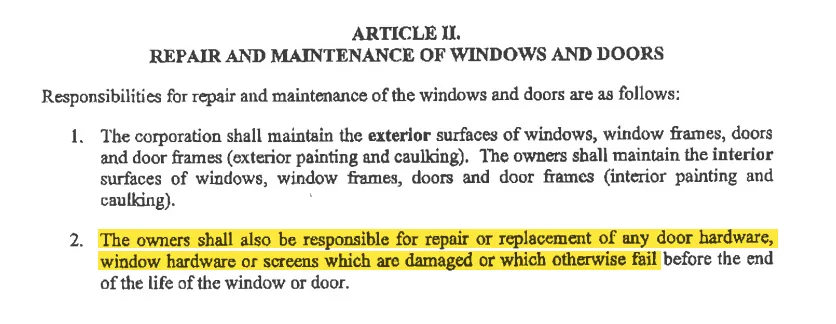
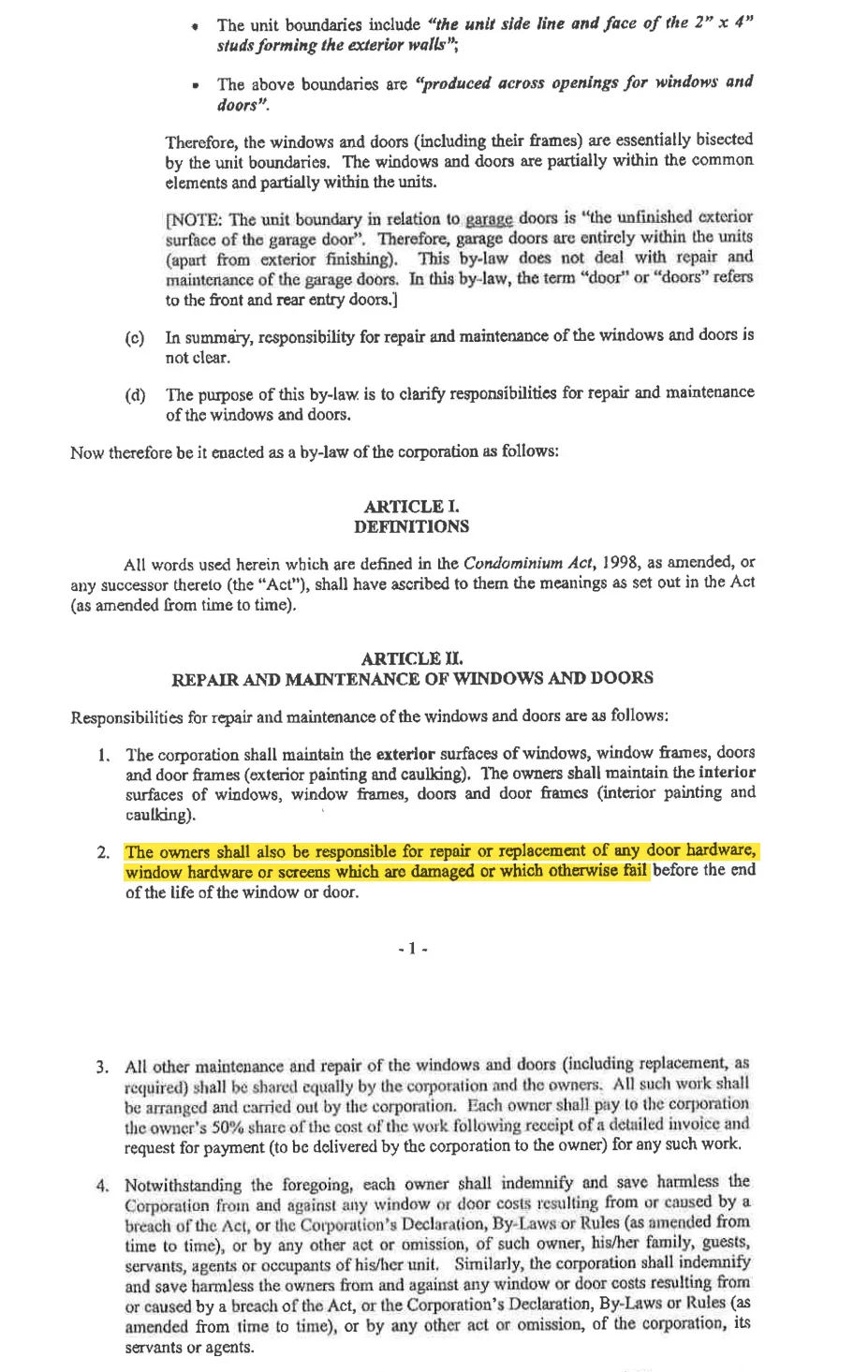
Tables often hold the figures people care about most, like account balances and payment histories. They can also be the part of PDFs that’s hardest to work with. Copy a few rows and paste them somewhere else, and the columns collapse into a blob of text. In a scanned document the table is just a picture, so there’s nothing to even copy.
This release changes how Eno handles tables.
Get answers from tables in your documents
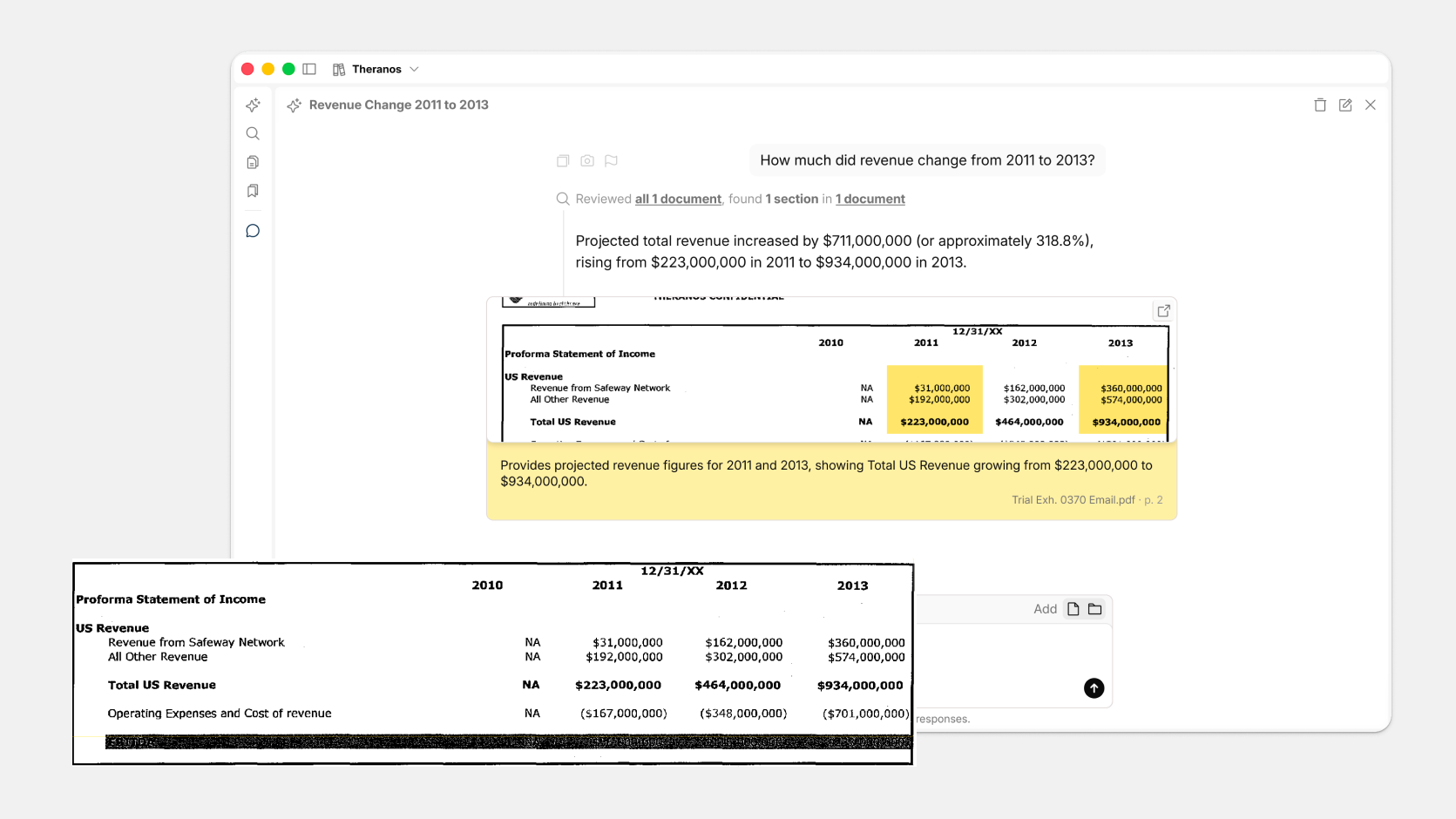
Eno’s AI now reads table data when it answers your questions. Each answer comes with a highlighted citation of the table it came from, so you can verify its claim against the source document. See how Eno stacks up vs ChatGPT and NotebookLM in the video below.
Paste tables and they stay tables
You can now copy tables out of PDFs and paste them into other apps with the structure intact. Try this in other applications and the pasted table is a mess of text. With Eno you can paste as:
- Rich Text into Excel, Google Sheets, or Word with its rows, columns and header cells in place.
- Markdown for notes, wikis and chat tools.
- Tab-separated text for anything that wants plain data.
All your tables listed in one place
Eno now scans documents in a workspace for tables and lists them in an index you can navigate. Filter the list to find a specific table, then click to view it in full. Watch a 60 second demo.
Scanned tables included
Tables in scanned PDFs are now searchable, and Eno can answer questions from them too.
Tables in SEC filings
Most SEC filings are web pages, not PDFs. To use Eno on a 10-K’s tables, first save the filing with our free EDGAR to PDF tool, which keeps every page of the filing intact.
Happy pdfing,
The Eno Team